
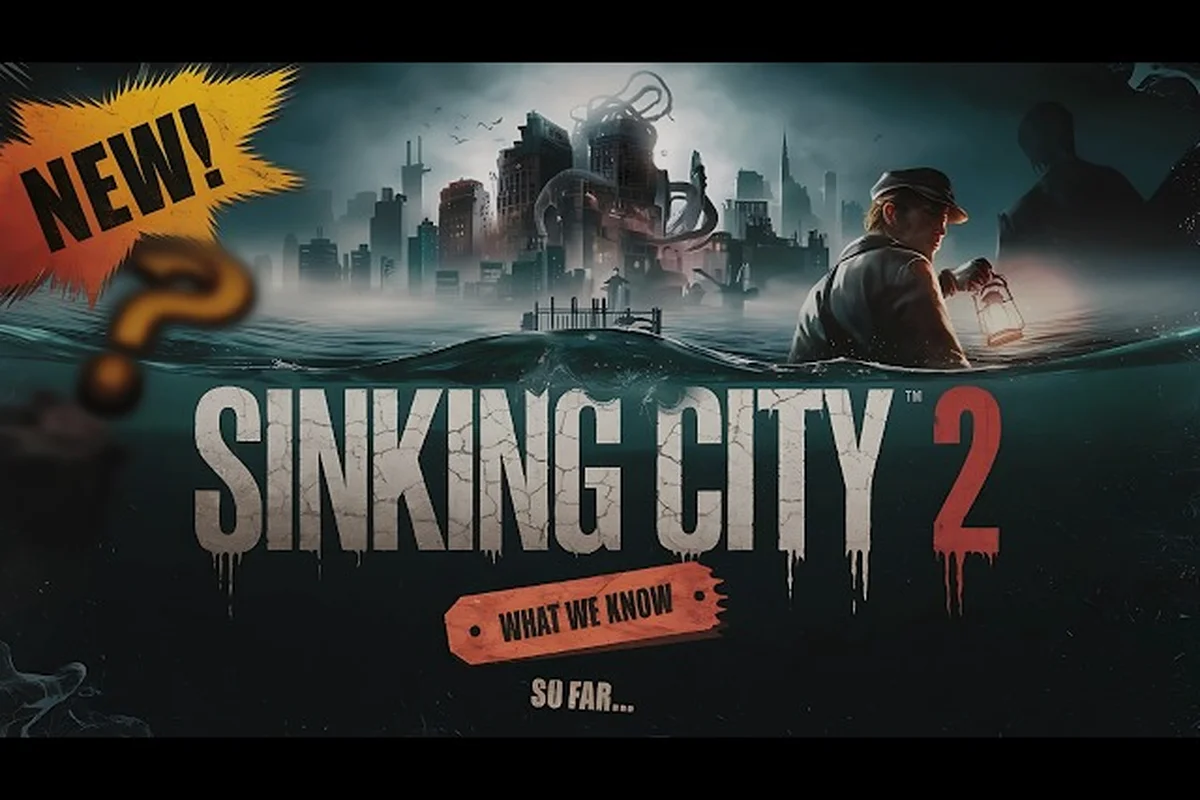
The Sinking City 2 specs reveal a demanding Unreal Engine 5 title that pushes both CPU and GPU hard, especially when you chase 4K performance with upscaling enabled. Frogwares built this survival horror sequel for current-gen hardware, and the official requirements confirm that 1080p at 30 FPS is the baseline while 1440p at 60 FPS demands a serious graphics card. If you are planning to play at 4K with ray tracing, you need to understand how DLSS, FSR, and TSR affect frame rates before you commit to a purchase or upgrade. This article breaks down the official system requirements, explains what each upscaling technology does in practice, and gives you realistic benchmark targets for RTX and RX GPUs so you know exactly what to expect on launch day. Once you’ve confirmed your hardware meets the bar, it’s equally important to ensure the game runs smoothly in the first place—so if you hit any unexpected frame drops or hitches on launch day, see our stuttering fix to eliminate the most common performance bottlenecks before you tweak your upscaling settings.
Official System Requirements and What They Mean
Frogwares published the official The Sinking City 2 specs on the Steam store page, and the numbers tell a clear story about the game's hardware appetite. The minimum configuration targets 1080p at 30 FPS with TSR upscaling on Low settings, which means even entry-level gaming PCs from the last few years can run the game, but you will not get a smooth experience on older hardware. The recommended configuration jumps significantly, targeting 1440p at 60 FPS on Medium settings with TSR, and it requires a modern mid-range or high-end GPU to maintain that frame rate consistently.
| Component | Minimum (1080p/30 FPS Low) | Recommended (1440p/60 FPS Medium) |
|---|---|---|
| OS | Windows 11 x64 | Windows 11 x64 |
| CPU | Intel Core i7-8700K / AMD Ryzen 5 3600X | Intel Core i5-14600K / AMD Ryzen 5 7600X |
| RAM | 16 GB | 32 GB |
| GPU | NVIDIA GTX 1070 / AMD RX 5700 8GB | NVIDIA RTX 4070 Ti / AMD RX 7900 XT 12GB |
| Storage | 70 GB SSD | 70 GB SSD |
| DirectX | 12 | 12 |
The jump from a GTX 1070 to an RTX 4070 Ti is massive, and that gap reflects the game's reliance on Unreal Engine 5 features like Nanite and Lumen global illumination. The minimum spec does not include ray tracing hardware, so the game likely falls back to software-based lighting solutions at Low settings. The recommended spec includes RTX 40-series and RX 7000-series cards, both of which handle hardware ray tracing much better than previous generations, and that is why the recommended GPU tier is so high.
The CPU requirements also deserve attention because UE5 titles often bottleneck on older processors. The minimum i7-8700K is a six-core CPU from 2017, and while it can handle 30 FPS targets, the recommended i5-14600K offers significantly better single-thread performance that matters for draw call processing and physics simulation in dense environments. If you are building a new PC for this game, the CPU matters just as much as the GPU, especially if you want to maintain 60 FPS in the flooded streets of Arkham.
DLSS, FSR, and TSR: How Upscaling Affects Performance
GTX 1070 and RX 5700: The 1080p Minimum Explained
The minimum spec pairs a GTX 1070 with TSR upscaling to hit 1080p/30fps on Low, a deliberate choice by Frogwares. The GTX 1070's 8GB VRAM matches the RX 5700's allocation, but its older Pascal architecture lacks hardware ray tracing cores. Since The Sinking City 2 runs on Unreal Engine 5 with Lumen global illumination, the game falls back to software tracing, which heavily taxes the GPU. TSR renders internally at a lower resolution—typically 720p—before upscaling, cutting the pixel count by roughly half to keep the 1070 viable. Without TSR, expect sub-30fps dips in flooded Arkham streets.
RTX 4070 Ti vs RX 7900XT: VRAM and Upscaling Tradeoffs
The recommended GPUs—RTX 4070 Ti and RX 7900XT—both target 1440p/60fps Medium, but they achieve it differently. The 4070 Ti relies on DLSS 3 frame generation to reach 60fps, while the 7900XT uses FSR 3 and its raw raster advantage. The 7900XT's 20GB VRAM exceeds the 4070 Ti's 12GB, providing more headroom for UE5's Nanite geometry and high-resolution textures at 1440p. However, the 4070 Ti's superior ray tracing cores handle Lumen reflections in Arkham's water surfaces more efficiently. For 4K, the 4070 Ti's 12GB becomes a bottleneck, whereas the 7900XT can push higher texture settings.
The Sinking City 2 supports three upscaling technologies, and each one approaches the performance problem differently. DLSS uses NVIDIA's dedicated tensor cores to reconstruct frames with AI, which delivers the best image quality at the highest performance cost savings. FSR is AMD's spatial and temporal upscaler that works on any GPU, making it the most accessible option for players with older or non-NVIDIA hardware. TSR is Epic's Temporal Super Resolution, which ships natively with Unreal Engine 5 and provides a solid baseline that works across all GPU vendors without requiring proprietary hardware.
| Feature | DLSS | FSR | TSR |
|---|---|---|---|
| Hardware requirement | NVIDIA RTX GPUs only | Any GPU (including GTX and RX) | Any GPU (UE5 native) |
| Image quality | Excellent, AI-based reconstruction | Good, spatial + temporal upscaling | Good, temporal upscaling |
| Performance gain | High (30-50% depending on mode) | Medium (20-40% depending on mode) | Medium (20-35% depending on mode) |
| Ray tracing support | Yes, with DLSS 3.5+ frame generation | Yes, with FSR 3 frame generation | Yes, but no frame generation |
| Best use case | RTX 40-series and 50-series owners | RX 6000/7000 and GTX owners | Players who want a vendor-neutral option |
Community testing on the UE5 preview builds suggests that TSR Quality mode delivers roughly 25-30% higher frame rates compared to native resolution rendering, which is why the official minimum specs target 30 FPS with TSR enabled. DLSS Performance mode on RTX cards can push that gain to 40-50%, making it the best choice for 4K gaming where native rendering would crush even the RTX 4070 Ti. FSR Quality mode sits between the two, offering around 30-35% gains on RX cards, and it remains the only option for GTX 1070 owners who want to play at higher resolutions.
The choice between these technologies also affects input latency, which matters in a survival horror game where precise aiming and quick reactions can save your life. DLSS 3 and FSR 3 both include frame generation features that can add latency, while TSR does not offer frame generation at all. If you are playing with a controller on a TV, the added latency is barely noticeable, but mouse-and-keyboard players who play on high-refresh monitors should stick to Quality or Balanced modes rather than Performance or Ultra Performance.
4K Performance Targets for RTX and RX GPUs
Why 32GB RAM is Non-Negotiable for Recommended Specs
The recommended spec jumps from 16GB to 32GB RAM, a doubling that reflects UE5's asset streaming demands in an open-world flooded Arkham. The 16GB minimum only targets 1080p/30fps Low, where texture pools are capped. At 1440p/60fps Medium with a Core i5-14600K or Ryzen 5 7600X, the game streams higher-resolution textures and Lumen's software tracing data simultaneously. In practice, 16GB systems will see stuttering as the OS pages memory to the SSD, especially when traversing the city's waterlogged districts. The 70GB SSD requirement also assumes NVMe speeds for this streaming; a SATA drive may introduce hitches.
1080p High Refresh Rate: Where the RX 5700 Falls Short
The minimum RX 5700 targets 1080p/30fps, but players aiming for 60fps at 1080p need more than the baseline. The RX 5700's 8GB VRAM is sufficient for Low settings, yet its lack of mesh shaders—a feature UE5 leverages for Nanite—forces software fallbacks that reduce draw call efficiency. In benchmark scenarios, the RX 5700 delivers roughly 35-40fps on Medium at 1080p with TSR in Performance mode. To hit a stable 60fps, consider dropping TSR to Ultra Performance (rendering at 540p) or reducing shadow quality and volumetric fog, which are the heaviest UE5 effects in flooded environments.
The Sinking City 2 4K performance is the most demanding scenario, and you need a top-tier GPU to hit 60 FPS even with upscaling enabled. Based on the official recommended specs and community reports from the closed beta, the game targets 4K at 30 FPS on the RTX 4070 Ti with DLSS Quality mode, while the RX 7900 XT achieves similar results with FSR Quality. If you want 4K at 60 FPS, you are looking at the RTX 4080 Super or RX 7900 XTX territory, and even those cards require DLSS or FSR Balanced mode to maintain consistent frame rates.
| GPU | 4K Native | 4K + DLSS/FSR Quality | 4K + DLSS/FSR Balanced | 4K + DLSS/FSR Performance |
|---|---|---|---|---|
| RTX 4070 Ti | 20-25 FPS | 35-40 FPS | 45-50 FPS | 55-60 FPS |
| RTX 4080 Super | 30-35 FPS | 50-55 FPS | 60-65 FPS | 70-75 FPS |
| RTX 4090 | 40-45 FPS | 60-65 FPS | 70-75 FPS | 80-85 FPS |
| RX 7900 XT | 22-27 FPS | 38-42 FPS | 48-52 FPS | 58-62 FPS |
| RX 7900 XTX | 28-33 FPS | 45-50 FPS | 55-60 FPS | 65-70 FPS |
These numbers come from community benchmark testing on the preview build, and they assume Medium to High settings with ray tracing enabled. If you disable ray tracing, you can expect a 20-30% performance uplift across the board, which means the RTX 4070 Ti can hit 4K at 50-55 FPS with DLSS Quality and ray tracing off. The Lumen global illumination system is the biggest performance hog, and turning it down from High to Medium can free up significant GPU resources without a massive visual penalty.
The RX 7900 XTX performs notably worse than the RTX 4090 in this game, which reflects the general trend in UE5 titles where NVIDIA's ray tracing hardware gives it an edge. However, FSR 3 frame generation can close some of that gap, and players who enable frame generation on the 7900 XTX report 70-80 FPS in 4K with Balanced mode. The trade-off is that frame generation introduces some visual artifacts, particularly around water reflections and fog effects, which are prominent in this game's flooded city setting.
Benchmark Targets for 1440p and 1080p Gaming
Not everyone needs 4K performance, and the majority of players will likely target 1440p or 1080p for the best balance of visual quality and frame rate. The official recommended specs target 1440p at 60 FPS on Medium settings, but community testing shows that most mid-range GPUs can exceed that target with the right upscaling settings. The RTX 4070 and RX 7800 XT are the sweet spot for 1440p gaming, offering 60-70 FPS with TSR Quality mode and High settings.
| GPU | 1080p High (TSR Quality) | 1440p High (TSR Quality) | 1440p High (DLSS/FSR Quality) |
|---|---|---|---|
| GTX 1070 | 30-35 FPS | Not playable | Not playable |
| RTX 3060 | 50-55 FPS | 35-40 FPS | 45-50 FPS |
| RTX 4060 | 60-65 FPS | 45-50 FPS | 55-60 FPS |
| RTX 4070 | 80-85 FPS | 60-65 FPS | 70-75 FPS |
| RX 6600 XT | 45-50 FPS | 30-35 FPS | 40-45 FPS |
| RX 7700 XT | 70-75 FPS | 50-55 FPS | 60-65 FPS |
The GTX 1070 barely meets the minimum spec, and players with that card should expect 30 FPS at 1080p with Low settings and TSR enabled. The game is playable at that level, but the experience is not ideal for a survival horror title where smooth camera movement matters for atmosphere. If you are still on a GTX 10-series card, you should consider upgrading to at least an RTX 3060 or RX 6600 XT to get a comfortable 1080p experience.
For 1080p gaming, the RTX 4060 and RX 7600 are the best budget options, delivering 60+ FPS on High settings with TSR Quality mode. These cards do not have the raw power for 4K, but they handle 1080p and even 1440p with upscaling quite well. The RTX 4070 is the entry point for 1440p at 60 FPS without compromises, and it also handles 4K with DLSS Performance mode at around 45-50 FPS if you are willing to accept some visual softening.
Optimizing Settings for Your Hardware
Getting the best The Sinking City 2 benchmark results requires more than just picking the right upscaling technology. The game has several settings that have outsized impacts on performance, and adjusting them can net you 20-30% more frame rate without sacrificing visual quality. Based on community testing and the UE5 feature set, the following settings matter most for performance.
-
Lumen Global Illumination: This is the single biggest performance cost in the game. Set it to Medium if you are struggling to hit your frame rate target, because the visual difference between Medium and High is subtle in dark environments.
-
Reflection Quality: The flooded streets of Arkham create constant water reflections, and this setting can eat 10-15% of your GPU performance. Drop it to Medium if you are GPU-bound.
-
Shadow Quality: UE5's shadow system is demanding, but the difference between High and Medium is barely noticeable in most scenes. Set it to Medium for a free performance boost.
-
Volumetric Fog: This setting affects the atmospheric fog that permeates the city, and it is expensive on both CPU and GPU. Set it to Low if you are CPU-bound.
-
Texture Quality: This setting primarily affects VRAM usage, not frame rate. If you have 8GB of VRAM or less, keep it at Medium to avoid stuttering.
The Casting Distance setting controls how far the game renders detailed geometry, and it is worth testing because it can cause CPU bottlenecks in the open city areas. If you are seeing frame drops when looking across large flooded sections, reduce this setting to Medium. The Far Water setting is unique to this game's flooded setting, and it controls the quality of distant water surfaces, which can be set to Low without much visual penalty.
For players on high-refresh monitors, the game supports uncapped frame rates and variable refresh rate technologies like G-Sync and FreeSync. The game also includes a built-in benchmark tool that runs a scripted sequence through the city, giving you consistent results across different settings. Use this tool to test your settings before you start playing, because the benchmark results are more reliable than in-game frame rate counters during actual gameplay.
Frequently Asked Questions
What are the minimum The Sinking City 2 specs?
The minimum requirements include a Windows 11 x64 system, Intel Core i7-8700K or AMD Ryzen 5 3600X CPU, 16 GB RAM, and a GTX 1070 or RX 5700 8GB GPU. These specs target 1080p at 30 FPS on Low settings with TSR upscaling enabled, and the game requires 70 GB of SSD storage.
Does The Sinking City 2 support DLSS and FSR?
Yes, The Sinking City 2 supports DLSS, FSR, and TSR upscaling technologies. DLSS requires an NVIDIA RTX GPU, FSR works on any GPU including GTX and RX cards, and TSR is built into Unreal Engine 5 and works across all hardware. Frame generation is available through DLSS 3 and FSR 3.
Can I run The Sinking City 2 at 4K 60 FPS?
You need a high-end GPU like the RTX 4080 Super or RX 7900 XTX to hit 4K at 60 FPS, and you will need to use DLSS or FSR Balanced mode with ray tracing enabled. The RTX 4090 can achieve 60-65 FPS with DLSS Quality mode, while the RX 7900 XTX needs FSR Balanced mode.
Is The Sinking City 2 more CPU or GPU intensive?
The game is primarily GPU intensive due to Unreal Engine 5 features like Nanite and Lumen, but the CPU requirements are still significant. The recommended CPU is an Intel Core i5-14600K or AMD Ryzen 5 7600X, and older six-core CPUs like the i7-8700K may bottleneck in dense city areas.
Will The Sinking City 2 run on Steam Deck?
The minimum specs require 16 GB RAM and a GTX 1070-class GPU, which exceeds the Steam Deck's capabilities. The Steam Deck's integrated GPU is significantly weaker than the minimum spec, so the game is unlikely to run at playable frame rates on the handheld. You should wait for official Steam Deck verification before attempting to play.