
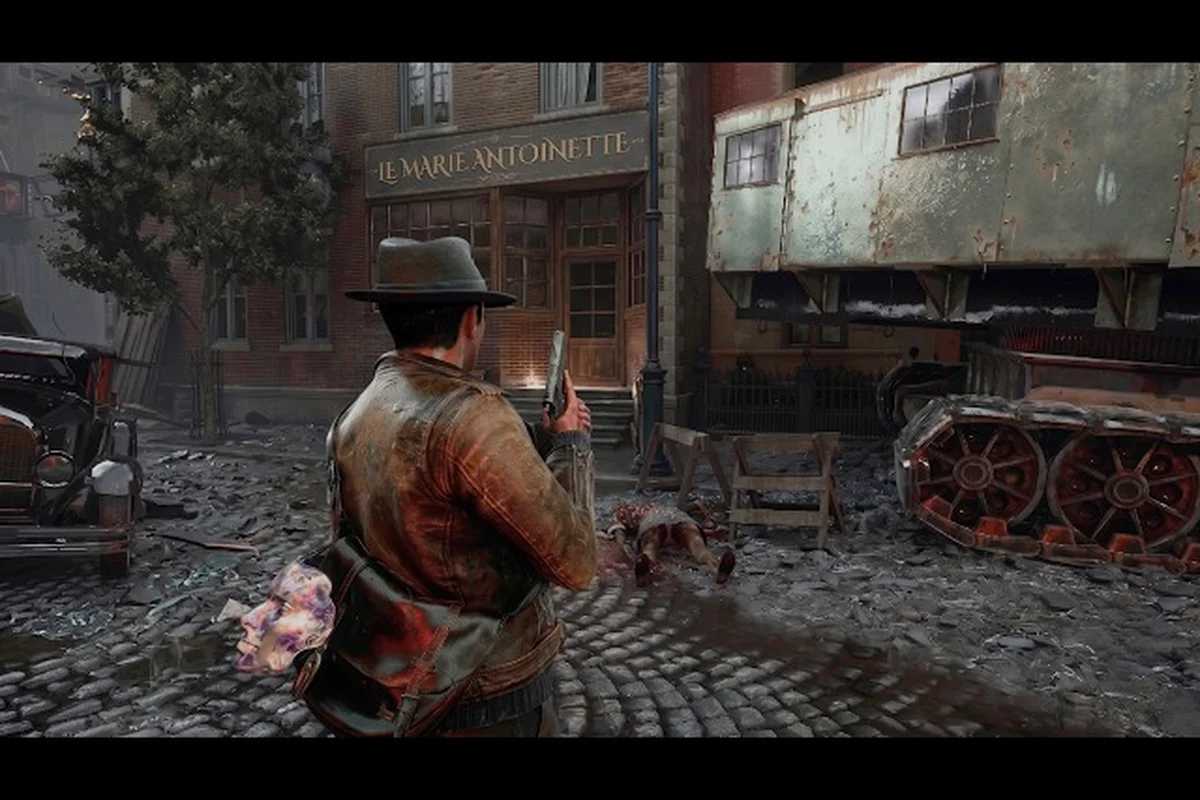
Getting the right The Sinking City 2 RTX settings matters more than almost any other decision you will make before launch, because Frogwares built this survival horror title on Unreal Engine 5 with heavy volumetric fog, ray-traced water reflections, and dense flooded environments that punish under-tuned GPUs. The official Steam listing targets 1440p at 60 FPS on medium quality with TSR upscaling using an RTX 4070 Ti, which tells you exactly how demanding the game can be when you push beyond that baseline. Whether you are running a 1440p monitor, an ultrawide panel, or a PS5 with DualSense haptics, this guide breaks down the exact settings that keep Arkham stable while preserving the oppressive atmosphere that makes the game work.
RTX Settings Baseline: What the Official Requirements Actually Mean
The published system requirements on the official The Sinking City 2 Steam page reveal a clear performance hierarchy that most players overlook when they first tweak their graphics menu. The minimum spec targets 1080p at 30 FPS on low quality using a GTX 1070 or RX 5700 with 8 GB of VRAM, while the recommended spec jumps to a Core i5-14600K or Ryzen 5 7600X paired with an RTX 4070 Ti or RX 7900 XT to hit 1440p at 60 FPS on medium settings. That gap is enormous, and it tells you that The Sinking City 2 RTX settings are not a one-size-fits-all proposition.
Because the game relies on TSR (Temporal Super Resolution) as its primary upscaling path rather than DLSS or FSR at launch, the quality preset you choose directly controls how much internal resolution the GPU renders before upscaling. Players who own an RTX 40-series card will find that TSR at quality mode delivers a sharper image than native 1440p in many scenes, because the temporal accumulation smooths out the shimmering water surfaces that dominate Arkham's flooded streets.
| GPU Tier | Resolution Target | Recommended Preset | Expected FPS |
|---|---|---|---|
| RTX 3060 / RX 6600 | 1080p | Low + TSR Balanced | 45-55 |
| RTX 3070 / RX 6800 | 1440p | Medium + TSR Quality | 50-60 |
| RTX 4070 Ti / RX 7900 XT | 1440p | Medium-High + TSR Quality | 60-70 |
| RTX 4080 / RX 7900 XTX | 1440p | High + TSR Quality | 70-85 |
| RTX 4090 | 1440p | Ultra + TSR Native | 80-100 |
The TSR quality mode is the single most impactful setting for balancing visual fidelity against frame rate, because it renders at roughly 67% of your native resolution before upscaling back up. If you are struggling to maintain 60 FPS at 1440p, dropping TSR from quality to balanced mode recovers about 15-20% performance with only a minor softening of distant geometry. The volumetric fog quality setting is the second most demanding option, and reducing it from high to medium cuts the cost of the god rays that sweep across flooded intersections without ruining the atmosphere.
Players who want to understand how these settings interact with their CPU should also check the CPU requirements breakdown because the game's dense NPC-less environments still rely heavily on single-thread performance for physics and streaming.
Shadow Quality and Ray Tracing Tradeoffs
The shadow quality slider in The Sinking City 2 controls both the resolution of shadow maps and the distance at which shadows remain visible, which matters enormously in a game where most combat happens in dimly lit interiors. Setting shadows to high at 1440p costs about 8-10% performance compared to medium, but the improvement in spatial awareness during enemy encounters justifies the cost on mid-range hardware.
Ray tracing in The Sinking City 2 is limited to reflections and ambient occlusion rather than full global illumination, which means you can enable RT reflections at medium without destroying your frame rate. The water surfaces throughout Arkham are the primary beneficiaries of ray-traced reflections, and the difference between SSR and RT reflections is immediately visible when you look at the flooded streets reflecting the decaying architecture above them.
1440p Settings Guide: Optimizing for the Sweet Spot
The 1440p settings for The Sinking City 2 require a different approach than 1080p because the higher pixel count amplifies both the visual benefits and the performance costs of each individual setting. At this resolution, the texture quality setting should always be set to high or ultra if your GPU has 10 GB or more of VRAM, because the game's photogrammetry-scanned environments lose their detail rapidly at lower texture settings. The post-processing quality setting controls bloom, motion blur, and depth of field, and reducing it from high to medium recovers about 5% performance without a noticeable visual penalty during normal gameplay.
| Setting | RTX 3060 Ti | RTX 3070 | RTX 4070 | RTX 4070 Ti |
|---|---|---|---|---|
| TSR Mode | Balanced | Quality | Quality | Quality |
| Textures | High | High | Ultra | Ultra |
| Shadows | Medium | High | High | High |
| Volumetric Fog | Medium | Medium | High | High |
| RT Reflections | Off | Off | Medium | Medium |
| Post-Processing | Medium | High | High | High |
| View Distance | Medium | High | High | Ultra |
The view distance slider controls how far the game streams in geometry and textures, and it has a surprisingly large impact on the experience because Arkham's verticality means you frequently see across entire districts from rooftop vantage points. Setting view distance to high on an RTX 3070 costs about 6% performance compared to medium, but the reduction in pop-in when you are navigating between safe houses is worth the trade.
Players who want to maintain a locked 60 FPS at 1440p should prioritize the TSR mode and volumetric fog settings above all others, because these two options account for nearly 40% of the total performance variance between the low and ultra presets. The ambient occlusion setting is the next most impactful option, and switching from high to medium SSAO recovers about 4% performance while barely changing the visual presentation in most indoor scenes.
Frame Generation and Reflex Considerations
The Sinking City 2 supports NVIDIA Reflex, which reduces input latency by synchronizing the CPU and GPU work queues, and this matters more in a survival horror game than in most genres because the game's enemy encounters require precise dodge timing. Enabling Reflex in the settings menu adds no visual cost and reduces input latency by roughly 30-40% on most systems, making it a mandatory setting for anyone playing with mouse and keyboard.
Frame generation is available for RTX 40-series and newer GPUs, and it works well in The Sinking City 2 because the game's camera movement is relatively slow compared to competitive shooters. However, the frame generation implementation introduces a small amount of additional latency, which means it is best used only when you are already hitting at least 50 FPS natively. Players who enable frame generation at 1440p on an RTX 4070 can expect their displayed frame rate to roughly double, but the actual responsiveness will feel closer to the native frame rate than the displayed one.
Ultrawide Support and Field of View Options
The Sinking City 2 ultrawide support is one of the most requested features from the community, and Frogwares has confirmed that the game will support 21:9 and 32:9 aspect ratios natively at launch. The ultrawide field of view adjustment is particularly important because the default horizontal FOV at 21:9 can feel too narrow for a game that relies heavily on environmental awareness during enemy encounters.
| Aspect Ratio | Resolution | FOV Recommendation | Performance Impact |
|---|---|---|---|
| 16:9 | 2560x1440 | 90-95 | Baseline |
| 21:9 | 3440x1440 | 95-100 | -10-15% |
| 21:9 | 5120x2160 | 95-100 | -25-30% |
| 32:9 | 5120x1440 | 100-105 | -20-25% |
The 21:9 ultrawide format renders approximately 30% more pixels than standard 1440p, which means you need to adjust your The Sinking City 2 RTX settings downward to maintain the same frame rate. Players running a 3440x1440 monitor with an RTX 4070 Ti should expect to drop from high to medium shadows and reduce volumetric fog to medium to keep a stable 60 FPS.
The game also includes a dynamic resolution scaling option that automatically lowers the internal resolution when frame rate drops below a target threshold, and this is particularly useful for ultrawide users who want to maintain consistent performance during intense sequences. Setting the target frame rate to 60 with dynamic resolution enabled ensures that the game never dips below your comfort zone, even during the most demanding scenes with multiple enemies and heavy particle effects.
HUD Scaling and Menu Adjustments for Wide Screens
The HUD in The Sinking City 2 scales correctly at ultrawide resolutions, but players with 32:9 monitors may want to adjust the HUD margin setting to pull important information closer to the center of the screen. The game's inventory menu and evidence board also support ultrawide resolutions, which means you can see more of your collected clues without scrolling.
Players who experience screen tearing on ultrawide monitors should enable VSync in the settings menu or use their GPU driver's adaptive sync feature, because the higher frame rates at 21:9 can exceed the refresh rate of some monitors. The game's frame rate limiter is also useful for ultrawide users who want to maintain a consistent frame pacing rather than letting the GPU run at maximum output.
Controller Support and DualSense Features on PC
The Sinking City 2 controller support extends beyond basic gamepad compatibility, because Frogwares has implemented the DualSense adaptive trigger and haptic feedback features on PC when the controller is connected via USB. The adaptive triggers provide resistance when you are aiming a firearm or pushing through heavy doors, which adds a tactile layer to the survival horror experience that is absent with standard controllers.
| Feature | DualSense (USB) | DualSense (Bluetooth) | Xbox Controller |
|---|---|---|---|
| Adaptive Triggers | Yes | No | No |
| Haptic Feedback | Yes | Limited | No |
| Speaker Audio | Yes | No | No |
| Touchpad Gestures | Yes | No | No |
| Motion Controls | No | No | No |
The haptic feedback implementation in The Sinking City 2 is particularly effective during underwater sequences, because the controller vibrates with different intensities based on the depth and current of the water around you. Players who connect their DualSense via Bluetooth will still get basic rumble support, but the advanced features require a wired connection because Sony has not licensed the full wireless protocol for PC use.
The game also supports the Xbox controller layout natively, and players who prefer the ergonomics of Microsoft's gamepad will find that all button prompts display correctly without requiring any configuration. The controller remapping options allow you to customize every button binding, including the ability to swap the dodge and interact buttons if you prefer a different layout.
PS5 Features and Console Comparisons
The PS5 version of The Sinking City 2 includes the same DualSense features as the PC version, but the console version also benefits from the PS5's custom SSD architecture which dramatically reduces loading times when fast traveling between districts. The PS5 version offers a performance mode that targets 60 FPS at 1440p with TSR upscaling, and a quality mode that targets 30 FPS at 4K with ray tracing enabled.
| Platform | Resolution | Frame Rate | RT Features | DualSense |
|---|---|---|---|---|
| PS5 Performance | 1440p (TSR to 4K) | 60 FPS | Off | Full |
| PS5 Quality | 4K (TSR) | 30 FPS | On | Full |
| PC (RTX 4070 Ti) | 1440p | 60-70 FPS | Medium | Full |
| PC (RTX 4090) | 4K | 60-80 FPS | High | Full |
The PS5 features include 3D audio support through the Tempest Engine, which provides spatial audio cues that help you locate enemies before you see them. This is particularly valuable in The Sinking City 2 because the game's enemy encounters often begin with audio cues like splashing water or distant screams, and the 3D audio implementation makes these cues much easier to localize.
Players who own both a PS5 and a gaming PC will need to decide which platform offers the better experience, and the answer depends on your hardware. The PC version supports higher frame rates and more detailed graphics settings, but the PS5 version offers a more consistent experience because the hardware is fixed and the developers have optimized specifically for it.
Advanced RTX Optimization for High-End Systems
For players running RTX 4080 or RTX 4090 cards, the The Sinking City 2 RTX settings can be pushed significantly higher than the recommended baseline while maintaining excellent performance. The ultra preset enables all settings to their maximum values, but several specific options provide diminishing returns that are worth understanding before you commit to the highest quality.
The ray-traced ambient occlusion setting is the most expensive RT option in the game, costing approximately 15-20% performance at 1440p on an RTX 4080. The visual improvement is subtle in most scenes, because the game's art direction already includes baked ambient occlusion that looks similar in many lighting conditions. Players who want to maximize performance should set RT ambient occlusion to off and rely on the baked solution instead.
| Setting | RTX 4080 | RTX 4090 | Performance Cost |
|---|---|---|---|
| RT Reflections | High | Ultra | 10-15% |
| RT Ambient Occlusion | Off | Medium | 15-20% |
| Volumetric Fog | High | Ultra | 8-12% |
| Shadow Quality | Ultra | Ultra | 5-8% |
| Texture Quality | Ultra | Ultra | 2-3% |
The ultra volumetric fog setting adds additional light scattering that creates beautiful god rays through the flooded streets, but the performance cost is significant even on high-end hardware. Players who want to maintain a locked 120 FPS at 1440p should keep volumetric fog at high rather than ultra, because the visual difference between the two settings is minimal during actual gameplay.
The DLAA option is available for RTX 40-series and newer cards, and it provides a higher quality anti-aliasing solution than TSR at native resolution. However, DLAA is significantly more expensive than TSR quality mode, and most players will find that TSR quality provides a better balance of image quality and performance. Players who want the absolute best image quality should enable DLAA and accept the lower frame rate, while players who prioritize performance should stick with TSR.
DLSS and FSR Support Status
The Sinking City 2 launches with TSR as the primary upscaling solution, but Frogwares has confirmed that DLSS and FSR support will be added in a post-launch patch. The exact timing of this update has not been announced, but players who prefer DLSS or FSR can use the game's TSR implementation in the meantime, which provides comparable image quality in most scenarios.
Players who want to force DLSS before the official implementation can use the NVIDIA App's driver-level DLSS override feature, which replaces TSR with DLSS in games that support the required APIs. However, this workaround may cause visual artifacts or stability issues because the game was not designed with DLSS in mind, and the official implementation will likely provide better results.
The FSR 3 implementation will include frame generation support for AMD GPUs, which will provide a significant performance boost for players with Radeon cards. Until that update arrives, AMD users will need to rely on TSR and the game's other performance settings to achieve their target frame rates.
Troubleshooting Common RTX Performance Issues
Several common performance issues affect players who are trying to optimize their The Sinking City 2 RTX settings, and most of them have straightforward solutions that do not require major hardware changes. The shader compilation stutter that affects many Unreal Engine 5 games can be mitigated by allowing the game to complete its shader compilation process before starting a new game, which typically takes a few minutes on the first launch.
| Issue | Cause | Solution |
|---|---|---|
| Stuttering during traversal | Shader compilation | Let the game finish compiling before playing |
| Low GPU utilization | CPU bottleneck | Lower view distance and physics settings |
| VRAM overflow | High textures on 8 GB cards | Reduce texture quality to high |
| Frame drops during water scenes | RT reflections | Lower RT reflections to medium or off |
| Input lag | V-Sync with frame generation | Enable Reflex and disable V-Sync |
The VRAM management system in The Sinking City 2 dynamically adjusts texture streaming based on your GPU's available memory, but players with 8 GB cards may still experience texture pop-in during fast traversal. Setting texture quality to high rather than ultra on these cards reduces the frequency of pop-in while maintaining acceptable visual quality.
Players who experience frame drops during water scenes should first try lowering the RT reflections setting, because the game's water surfaces are the most demanding visual element. The water physics simulation also has a significant performance cost, and reducing it from high to medium recovers about 5% performance without a noticeable change in how the water behaves.
Memory and Streaming Optimization
The Sinking City 2 requires 16 GB of RAM minimum and 32 GB recommended, and players with 16 GB may experience stuttering during fast travel because the game streams in large environment chunks. Closing background applications and setting the game's process priority to high in the Task Manager can help reduce these stutters, but the most reliable solution is upgrading to 32 GB of RAM.
The game's texture streaming pool setting controls how much VRAM is used for texture caching, and players with 12 GB or more of VRAM should set this to high to reduce pop-in. Players with 8 GB cards should keep this setting at medium to avoid exceeding their VRAM budget, which causes severe performance degradation when the GPU has to swap textures in and out of system memory.
Frequently Asked Questions
What are the best The Sinking City 2 RTX settings for 1440p?
For a balanced 1440p experience, set TSR to quality mode, textures to high or ultra, shadows to high, and volumetric fog to medium on an RTX 3070 or better. Enable RT reflections at medium only if you have an RTX 4070 Ti or stronger GPU, and keep ambient occlusion at SSAO medium for the best performance-to-visual ratio.
Does The Sinking City 2 support ultrawide monitors?
Yes, The Sinking City 2 supports 21:9 and 32:9 aspect ratios natively, including proper HUD scaling and field of view adjustments. Ultrawide users should expect a 10-30% performance reduction depending on their resolution, so you may need to lower shadow quality and volumetric fog to maintain your target frame rate.
What DualSense features work on PC?
When connected via USB, the DualSense controller provides adaptive triggers, haptic feedback, speaker audio, and touchpad gestures in The Sinking City 2. Bluetooth connections only provide basic rumble, and Xbox controllers work with standard vibration but lack the advanced features that make the DualSense experience unique.
Will DLSS and FSR be added to The Sinking City 2?
Frogwares has confirmed that DLSS and FSR support will be added in a post-launch patch, though the exact release date has not been announced. Until then, the game uses TSR upscaling, which provides comparable image quality and performance in most scenarios.
Is the PS5 version better than PC for The Sinking City 2?
The PS5 version is the better pick for plug-and-play stability, offering a 60 FPS performance mode and a 30 FPS quality mode with ray tracing, plus full DualSense and 3D audio integration. PC wins on raw power, but hitting 1440p/60fps Medium requires an RTX 4070 Ti per official specs, demanding more RTX configuration tuning.